DT06 - System Audit Log
Also known as the "User Screen Visitation History," DT06 shows a log of the screens that a user accessed for a loan on a given datetime range, throughout a day, etc. Using DT06 in combination with OD06 data can be very powerful & revealing when trying to determine how a loan was updated. For example, if OD06 shows that db1234 was updated to a value of "17" by user JS789 on 12/06/2024 3:30 PM ET, the question might be "What was user JS789 doing on this loan at the time when db1234 was updated to '17'?" Using DT06, it's possible to get an idea of what the user was doing at the time of the change.
Prerequisite
The following example assumes a basic knowledge of how to use OD06 to understand loan data changes. Please review the article titled Tips for understanding OD06 XML for detailed explanation of how to use OD06 to trace loan data changes.
Example
For the example below, we want to know when db496 (Do not include in Housing/Debt ratios flag) was set to 'N'. Please note that the screenshots have been altered for clarity & to mask any identifying information.
- Find the OD06 record in question. To do this:
- Set the Loan Number to the loan number in question (123456789).
- Check the box next to Show Field Changes.
- Set the Loan Field to 496 using indexes 1 & 1.
- Review each page of results until you find the record where the data was changed.
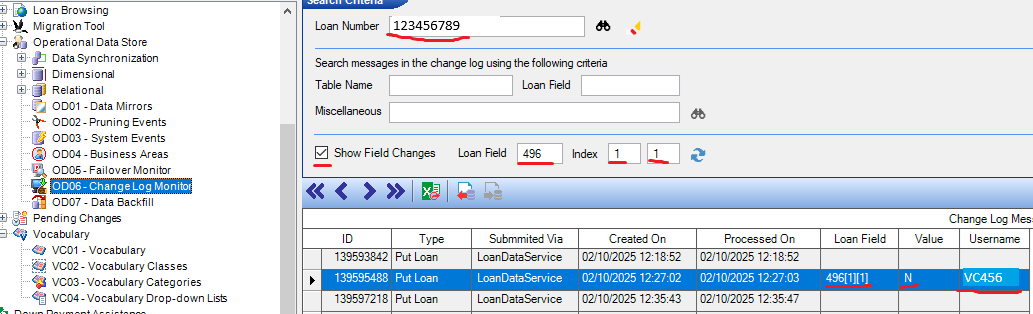
- We can see that user VC456 updated db496[1][1] to the value of 'N' on 2/10/2025 12:27:02 PM.
- Open DT06 & search for the following criteria:
- Loan Number = the loan we are reviewing (123456789)
- User ID = the user id value of the user that made the change (VC456)
- Audit Between = enter the datetime range to capture the change. (02/10/2025 12:00:00 PM & 02/10/2025 12:30:00 PM).
- Sometimes it helps to enter a large range (several hours or a few days) & then narrow it down as you review the results.
- The search will show you any results that match the search criteria. You will be looking for a record where the Audit Area equals "LoanSaved" & the Timestamp datetime equals the OD06 Created On datetime.
- It is recommended that the results are sorted by Timestamp.
- Note that the screenshot below has been altered for clarity. The actual results will also include the Loan Number, User ID, & the user's Full Name
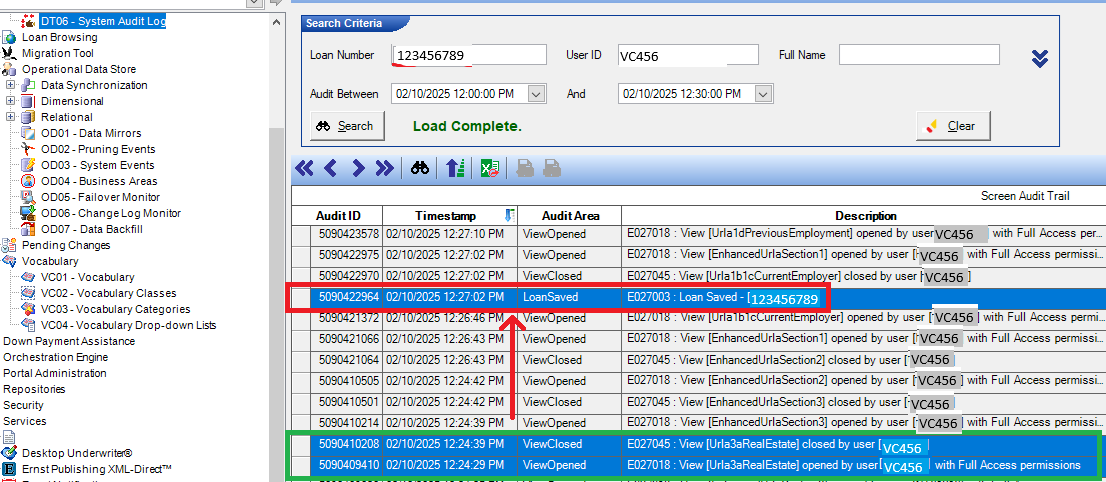
- In the above image, we read the records bottom to top.
- RED BOX = The datetime of 2/10/2025 12:27:02 PM for the LoanSaved event that lines up with the OD06 record.
- GREEN BOX = This shows that user VC456 was on the URLA Section 3a Real Estate Owned (Urla3aRealEstate) screen before the loan was saved. On this screen, db496 can be edited.
- Given that the user that made the loan data change was on a screen in Empower LOS Web where the DB in question can be edited, we can make the assumption that the user took an action that caused the DB to update.
Was this article helpful?
That’s Great!
Thank you for your feedback
Sorry! We couldn't be helpful
Thank you for your feedback
Feedback sent
We appreciate your effort and will try to fix the article